Check WordPress Plugin Compatibility with wp-since on xCloud
Table of Contents
Introduction
Ensuring your WordPress plugins are compatible with your site’s WP version is crucial for performance and security. I recently discovered [wp-since](https://github.com/eduardovillao/wp-since), a handy tool that scans plugins for compatibility issues by checking functions, classes, methods, and hooks against WordPress core versions. Here’s how I set it up for my site hosted on xCloud.
Step By Step Guide
Step 01: SSH into the server
Log into your xCloud account and visit the “Site > Access Data > SSH/sFTP” page. Setup a public key or password.
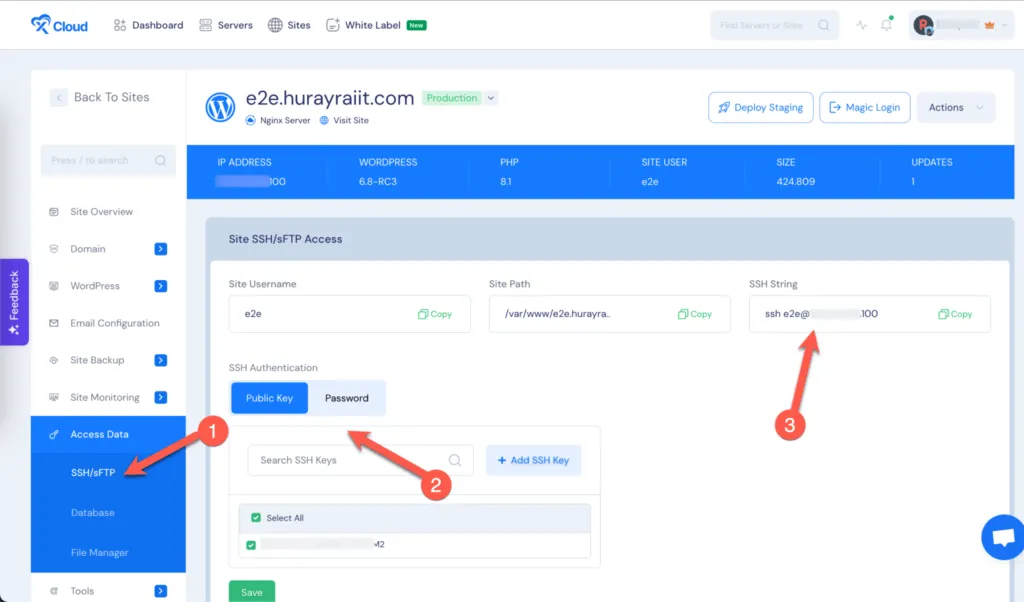
Then copy the “SSH String”. It should look something like this:
ssh site_user@123.234.45.100Then open your terminal and ssh into the server.

Step 02: Install wp-since using composer
Move into the home directory of the site user using the cd command:
cd $HOMEThen create a new directory:
mkdir wp-since
cd wp-since
Now install wp-since using composer. xCloud provides composer access to all users.
composer require --dev eduardovillao/wp-since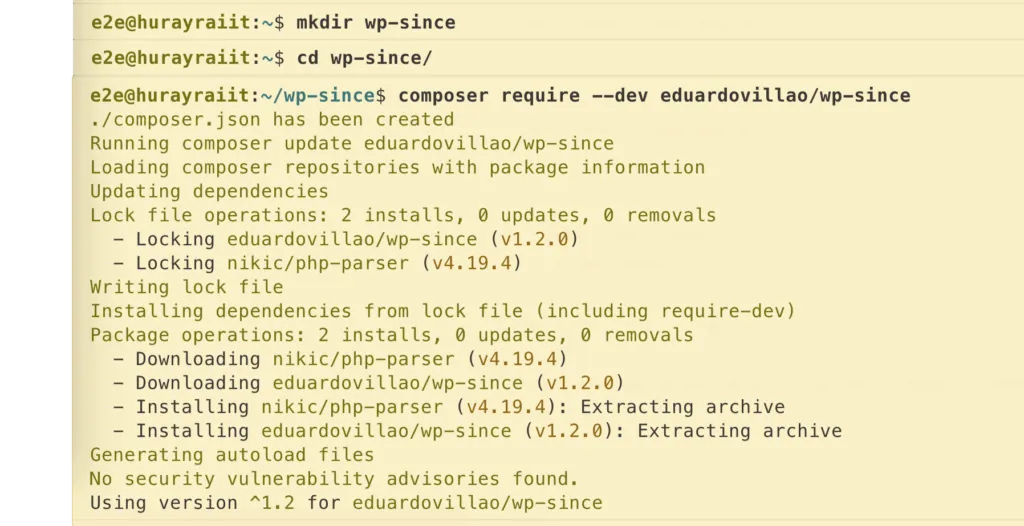
Step 03: Verify plugin compatibility
Finally, you can use the following command to verify compatibility of your plugins.
./vendor/bin/wp-since check /var/www/e2e.hurayraiit.com/wp-content/plugins/essential-blocks-
Replace
e2e.hurayraiit.comwith your site domain -
Replace
essential-blockswith your plugin slug
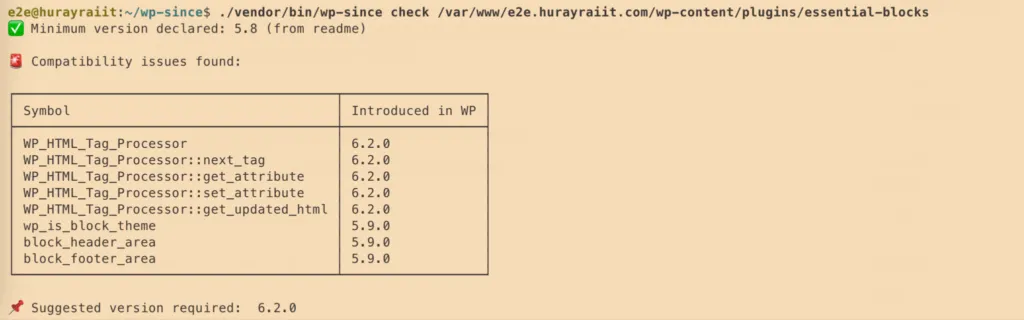
The output will look like this:
Analyze the results
If we visit the WP org plugin repository (link) and check the WordPress compatibility for Essential Blocks, we can see that it claims to support all versions from 5.8.
✅ Minimum version declared: 5.8 (from readme)
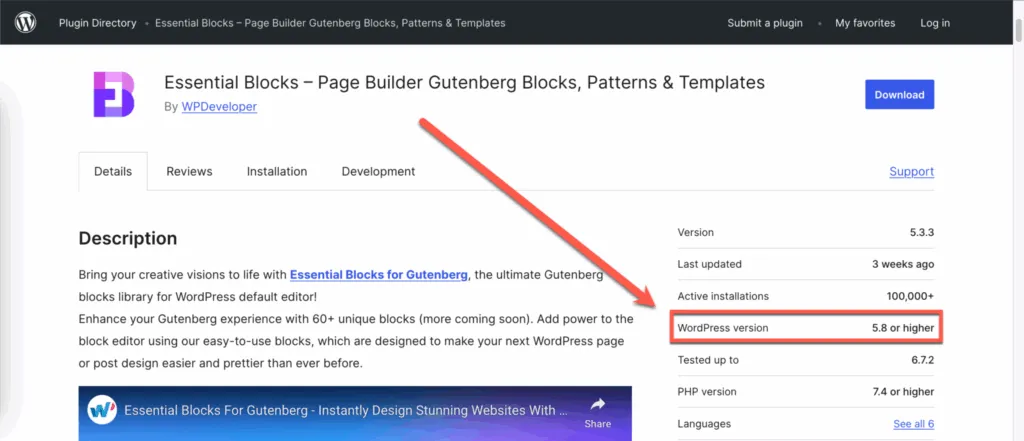
But wp-since has found several symbols that were introduced in later WordPress versions (6.2.0, 5.9.0)
So wp-since recommends setting it to 6.2.0 to ensure compatibility.
📌 Suggested version required: 6.2.0
Verify the issues
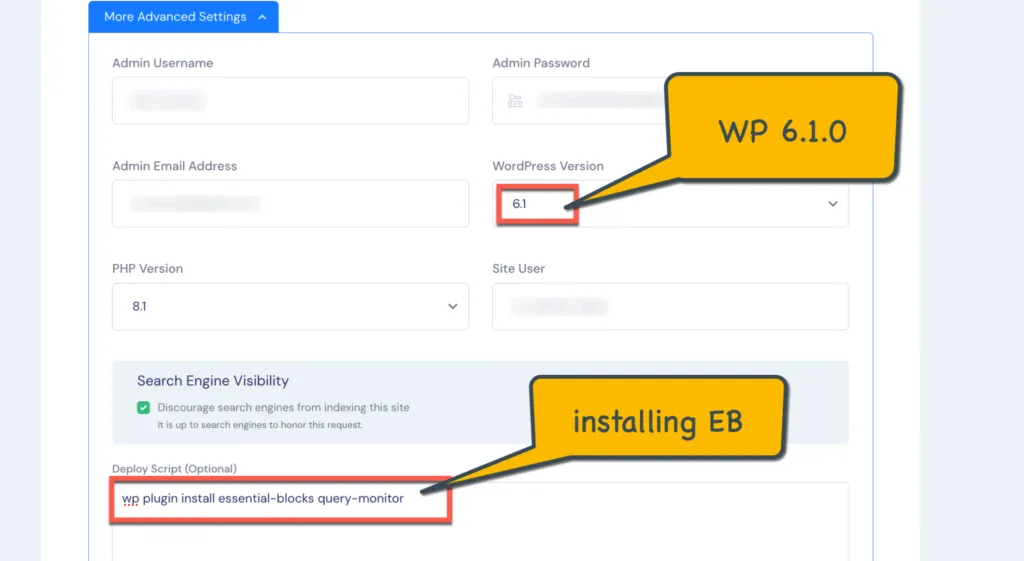
Let’s check if Essential Blocks actually throws any errors or not if used with WordPress version 6.1.0
Using xCloud, we will create a WordPress website with version 6.1.0 and install Essential Blocks using the deploy script:
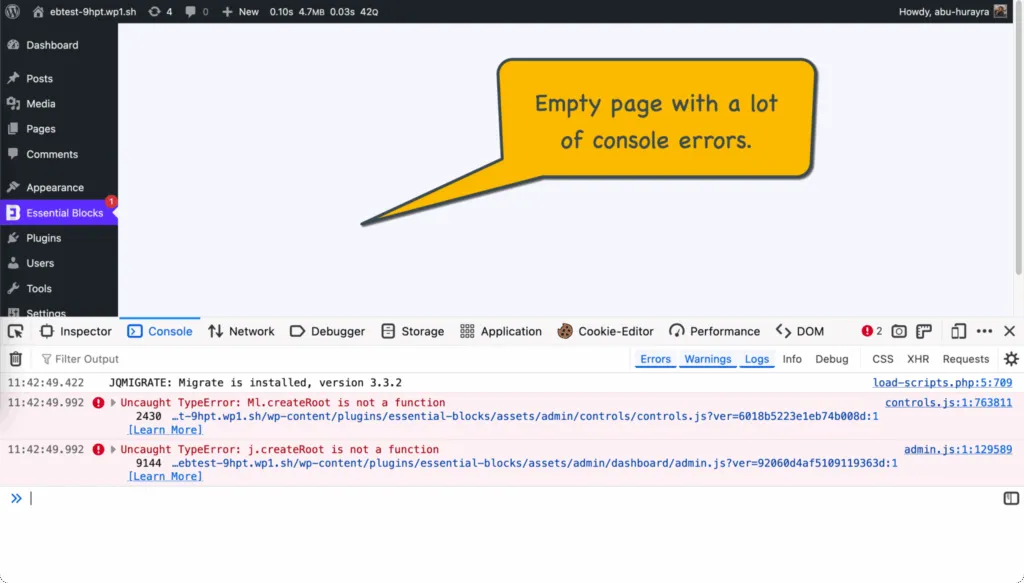
Now, we will magic login into the website and activate the EB plugins. We can see that the EB settings page shows a blank page with console errors.
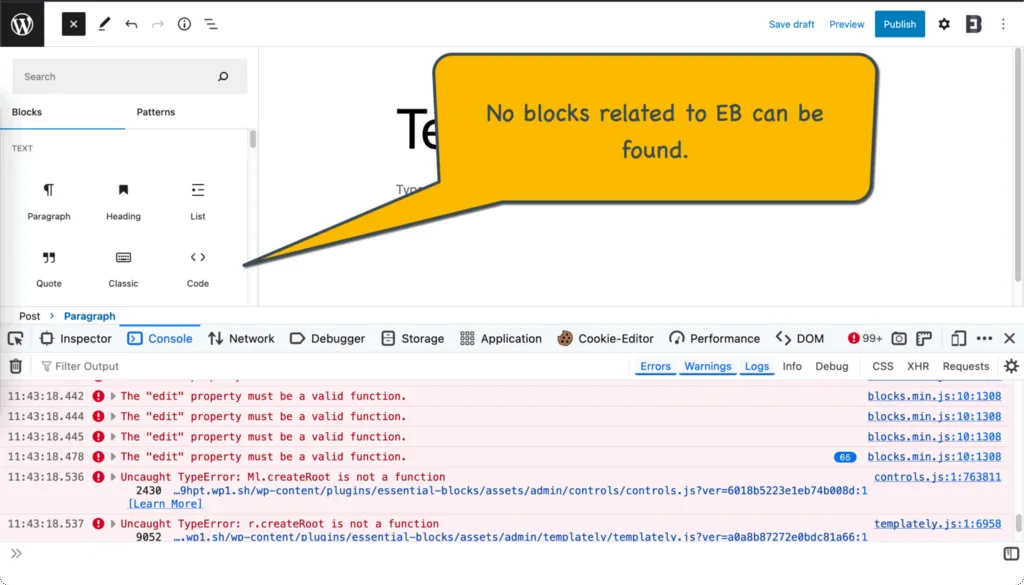
If we try to create a new post, we can not find any blocks related to EB.
… and, that’s it. Let me know if you enjoyed reading the article, using the comment section below 👇. See you in the next one.
Do you want to learn about PHP ini files in xCloud, check out this article: Intro to php.ini For Nginx & OpenLiteSpeed
If you found this post helpful, consider buying me a coffee. It keeps me writing!
